Overview Tab
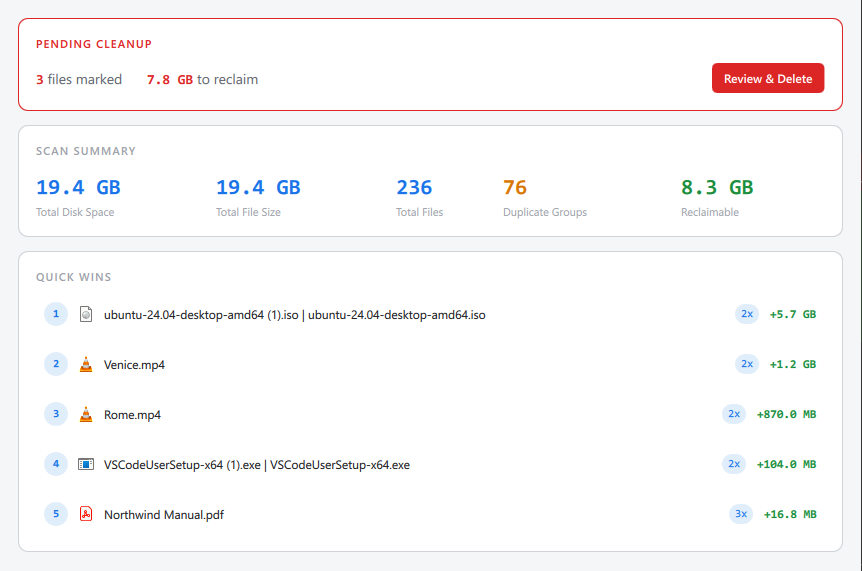
The Overview tab sums up the scan on one screen. Before anything is scanned it says Check folders in the tree to start scanning, and while a scan or a duplicate search is running, a band across the top says what SpaceMan 99 is doing.
Pending Cleanup
Shown only while files are marked, with a red border: the number of marked files and the space deleting them would free. Review & Delete switches to the Marked tab, where you can check the files and delete them. It does not delete anything itself.
Scan Summary
- Total Disk Space: the space the scanned files take on disk.
- Total File Size: the total size of the scanned files. It is larger than the disk space when some files are online-only, compressed or sparse, and can be slightly smaller for many small files, because disk space is allocated in whole blocks.
- Total Files: the number of scanned files.
- Duplicate Groups: the number of duplicate groups found.
- Reclaimable: the space you would free by deleting all but one copy in every duplicate group.
The last two are hidden while a scan or a duplicate search is running, and while the duplicate results are out of date.
While a new scan is running, the card keeps the previous scan's figures, dimmed and with an orange border, and says These figures are from the previous scan.
To see where the space is, folder by folder, sort the folder tree by size (in Settings), or open one of the Folder Sizes reports in Reports.
Quick Wins
The five duplicate groups that would free the most space, each with its number of copies and, in green, the space you would reclaim. Click one to see it on the Duplicates tab.
Until there are results, the card says why: for example, that duplicates will be found when the scan completes, that the search was stopped and can be run again from the Duplicates tab, or that the results are out of date because the scan or the filter has changed since the last search.