Folder Tree
The folder tree on the left of the window shows your drives and folders, with the size of everything you have scanned. Choosing what to scan is explained in Choosing What to Scan; this page describes everything else in the tree.
A folder's row
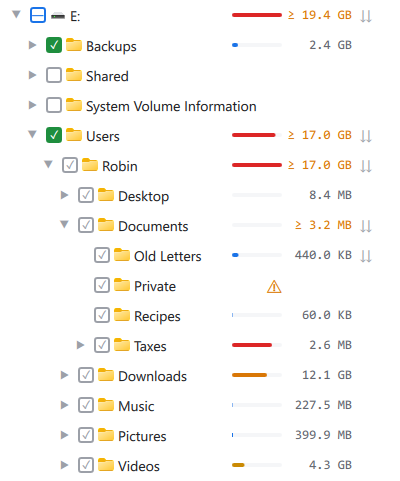
From left to right, a row shows:
- An arrow
 ,
if the folder has folders inside it. Click it to expand or collapse the
folder without selecting it.
,
if the folder has folders inside it. Click it to expand or collapse the
folder without selecting it. - The scan checkbox
 (see Choosing What to Scan). A folder link
has a link arrow
(see Choosing What to Scan). A folder link
has a link arrow
 in its place, and a network folder without a Pro license has a padlock
 .
. - The folder's icon. Drives show their own Windows icon, and network
locations a network icon
 .
If a folder is slow to open, three moving dots stand in for its icon until
it has been read.
.
If a folder is slow to open, three moving dots stand in for its icon until
it has been read. - The folder's name. Hovering over the name of a folder link, or of a folder that could not be read, adds an explanation after it.
- A warning sign
 ,
if the folder could not be read (see below).
,
if the folder could not be read (see below). - A size bar, showing the folder's share of the folder above it. The bar is blue for up to 15%, then yellow, orange, and red above 70%, so the folders taking most of the space stand out as you go down the tree.
- The folder's size: the disk space taken by everything scanned inside it. Folders that are not scanned show no size.
- A cloud
 or compressed sign
 ,
or both, after the size, if the folder contains online-only files, or
compressed or sparse files. Those take less space on disk than their size,
so the folder's total size is larger than the disk space shown. Hovering
over the sign says which it is.
,
or both, after the size, if the folder contains online-only files, or
compressed or sparse files. Those take less space on disk than their size,
so the folder's total size is larger than the disk space shown. Hovering
over the sign says which it is.
Totals that are a minimum
If a folder inside a scanned folder could not be read, the size of every folder above it is shown in orange, after a "≥" sign: the total is at least that much, but the unreadable folder's files are not in it.
The unreadable folder itself shows a warning sign
and no size. Hovering over
its name shows the reason Windows gave, such as Access is denied. To try
again, click the folder's name once it is selected, or right-click it and
choose Retry. Folders often become readable again when a drive is
reconnected or a network location comes back.
Selecting and expanding
Click a folder's name to select it. The Folder Contents tab shows what is inside it, and the path bar shows its path. Double-click the name to select the folder and switch to the Folder Contents tab as well.
Right-clicking a folder opens its menu without selecting it: the row is outlined while the menu is open.
The tree can also be used from the keyboard:
| Key | Does |
|---|---|
| Up, Down | Move to the folder above or below, and select it. |
| Right | Expand the folder, or move into it if it is already expanded. |
| Left | Collapse the folder, or move to the folder above it. |
| Enter | Switch to the Folder Contents tab, showing the selected folder. |
| Space | Click the folder's scan checkbox. |
| Menu key, or Shift+F10 | Open the folder's right-click menu. |
Folders are listed by name. To list them largest first instead, choose Size for Sort folder tree by in Settings.
The right-click menu
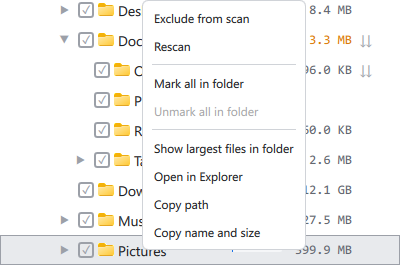
- Include in scan, Exclude from scan or Follow parent folder: whatever clicking the checkbox would do (see Choosing What to Scan).
- Rescan: reads the folder and everything inside it from disk again.
- Retry: shown only for a folder that could not be read: tries to read it again.
- Mark all in folder: marks every file in the folder and all the folders inside it, whether or not they have been scanned. Needs a Pro license.
- Unmark all in folder: unmarks every marked file in the folder and the folders inside it.
- Show largest files in folder: switches to the Largest Files tab, limited to this folder.
- Open in Explorer: opens the folder in File Explorer.
- Copy path: copies the folder's path.
- Copy name and size: copies the folder's name and size, separated by a tab, ready to paste into a spreadsheet.
- Remove: shown only for a network computer you added: removes it from the tree.
Some entries are unavailable while a delete is running or a report is being generated. Rescan and Mark all in folder are also unavailable while SpaceMan 99 is scanning or finding duplicates.
Mark all in folder reads any folders inside that have not been read yet. If that takes more than a moment, a small window shows how many files it has found so far, with a Cancel button. Any folder it cannot read is left out, and it tells you how many were. If every file in the folder is already marked, or there are no files in it, it says so.
Network locations
A network computer you added through the path bar appears at the top level of
the tree, with its shares inside it. Hovering over it shows a cross
 at the end of its row; click the cross, or choose Remove on its menu, to take it out
of the tree. See Choosing What to Scan
for scanning network locations.
at the end of its row; click the cross, or choose Remove on its menu, to take it out
of the tree. See Choosing What to Scan
for scanning network locations.