Largest Files Tab
The Largest Files tab ranks the scanned files by the disk space they take, largest first, from every scanned folder or from one folder you choose. It lists up to 1,000 files.
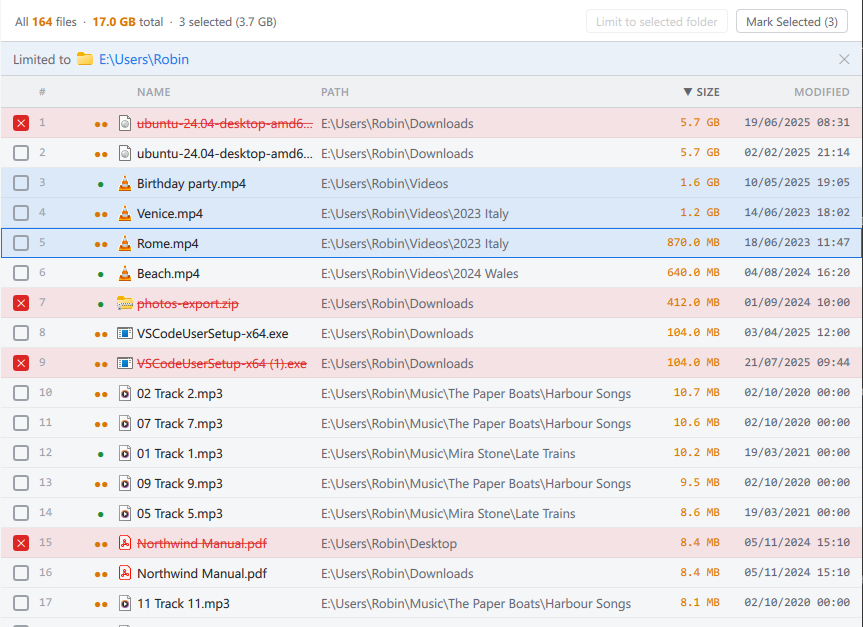
The header
On the left, how many files are listed and their total size, such as Largest 1,000 files of 48,210 · 212 GB total, followed by the number and size of any selected files.
Limit to selected folder narrows the list to the files inside the folder
selected in the folder tree, and the folders inside it. While the list is
limited, a strip under the header names the folder; click the cross
 at its end
to go back to every scanned folder. The list does not follow the folder tree
by itself: select another folder and press the button again to change it. The
folder tree's right-click menu has a shortcut for this, Show largest files
in folder.
at its end
to go back to every scanned folder. The list does not follow the folder tree
by itself: select another folder and press the button again to change it. The
folder tree's right-click menu has a shortcut for this, Show largest files
in folder.
Mark Selected marks the selected files, with their number in parentheses, such as Mark Selected (3), and reads Unmark Selected when all of them are already marked. Ctrl+M does the same.
The list
The list's columns, from left to right:
- A checkbox
 , which marks the file for deletion.
 - #: the file's rank.
- A status sign: what the duplicate search found, with the same signs as on the Folder Contents tab.
- Name: the file name. Marked files are red and struck through, and a purple shield
 marks a file in a protected folder.
 - Path: the folder the file is in.
- Size: the disk space the file takes.
- Modified: when the file was last changed.
Click a column heading to sort by it. Double-click a file to see it on the Folder Contents tab, in its own folder.
Selecting works as on the Folder Contents tab, with the mouse and with the same keys (see Folder Contents).
The right-click menu
Mark, Unmark, Go to folder, Next duplicate, Previous duplicate, Show duplicate group, Open, Show in Explorer, Copy path and Copy name and size, each as on the Folder Contents tab. Go to folder selects the file's folder in the folder tree, with the file highlighted.