Duplicate Groups
A duplicate group is a set of two or more files whose contents are exactly the same. Their names, dates and folders can all be different: a photo copied to a backup folder and renamed is still a duplicate of the original. Two files with the same name but different contents are not.

Each group on the Duplicates tab shows the files' names, the size of one copy, the number of copies, and in green the space you would reclaim by deleting all but one of them. The copies are listed with their full paths and dates when you expand the group. The Reclaimable figure on the Overview tab and in the status bar is the same sum over every group.
How duplicates are found
When a scan finishes, SpaceMan 99 compares the scanned files in stages, so that it reads as little as it can:
- Files are grouped by size. A file whose size nothing else shares cannot have a duplicate, and is never read.
- For files that share a size, the first 64 KB are read and compared. Most files that merely happen to be the same size differ straight away.
- The files still matching are read in full, and a fingerprint of the whole contents is compared.
While the search runs, the status bar shows the second and third stages as "step 1 of 2" and "step 2 of 2", each with a percentage.
The fingerprint is a 128-bit value computed from every byte of the file. Two different files having the same fingerprint is so unlikely that it can be ignored, so SpaceMan 99 does not also compare the files byte by byte.
SpaceMan 99 remembers the fingerprints it has computed, and uses them again as long as a file's size and date have not changed. A second search over the same files is therefore much quicker than the first.
The search starts by itself when a scan finishes. To start it yourself instead, untick Find duplicates automatically on the Duplicates tab, and press Find Duplicates when you are ready.
What takes part
Only scanned files take part: files in folders you have ticked in the folder tree. Some scanned files are left out:
- Empty files. All empty files are identical, and deleting one frees nothing.
- Links to files, and anything inside a folder link. A link and the file it points to are the same file, and deleting the "duplicate" would delete the only copy.
- Files the filter leaves out, if you have set one (below).
A file that cannot be read, because it is locked or you do not have permission to open it, is marked as unreadable and left out of the comparison.
Online-only files
OneDrive and other cloud services can keep a file online only, with nothing stored on your disk until you open it. SpaceMan 99 never downloads a file to compare it. An online-only file can still take part if SpaceMan 99 worked out its fingerprint while the file was on your disk. Otherwise, if another file shares its size, it is shown with a question mark: whether it is a duplicate cannot be known without downloading it.
Limiting the search with the filter
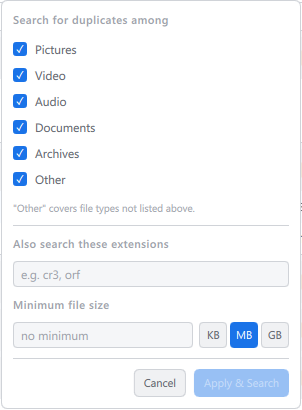
The Filter button on the Duplicates tab limits which files the search compares:
- the kinds of file to include: Pictures, Video, Audio, Documents, Archives, and Other (every type not in the first five);
- extra file extensions to include whatever kinds are ticked, such as
cr3, orf; - a minimum file size, so that small files are ignored.
To begin with, every kind of file is searched, with no minimum size. At least one kind of file must stay ticked, or an extension be named: the popup says Tick at least one type, or name an extension. otherwise. The filter changes what is compared, not what is scanned: folder sizes still count every file.
Out-of-date results
When what is scanned changes after a search has finished, the results catch up like this:
- Unticking a folder updates them straight away: its files leave their groups, and a group left with a single copy disappears. No new search is needed. (If a search is still running when you untick, it starts again over the smaller set.)
- Ticking another folder starts a scan, and a new search follows by itself when the scan finishes.
- Changing the filter: its button reads Apply & Search, and searches straight away.
With Find duplicates automatically unticked, a newly ticked folder's files and a changed filter wait for you instead: the Duplicates tab says in a band above the list that the results are out of date, and Find Duplicates searches again. (The filter's button then reads Apply.) The old results stay usable until then, and you can go on marking from them.