Toolbar and Status Bar
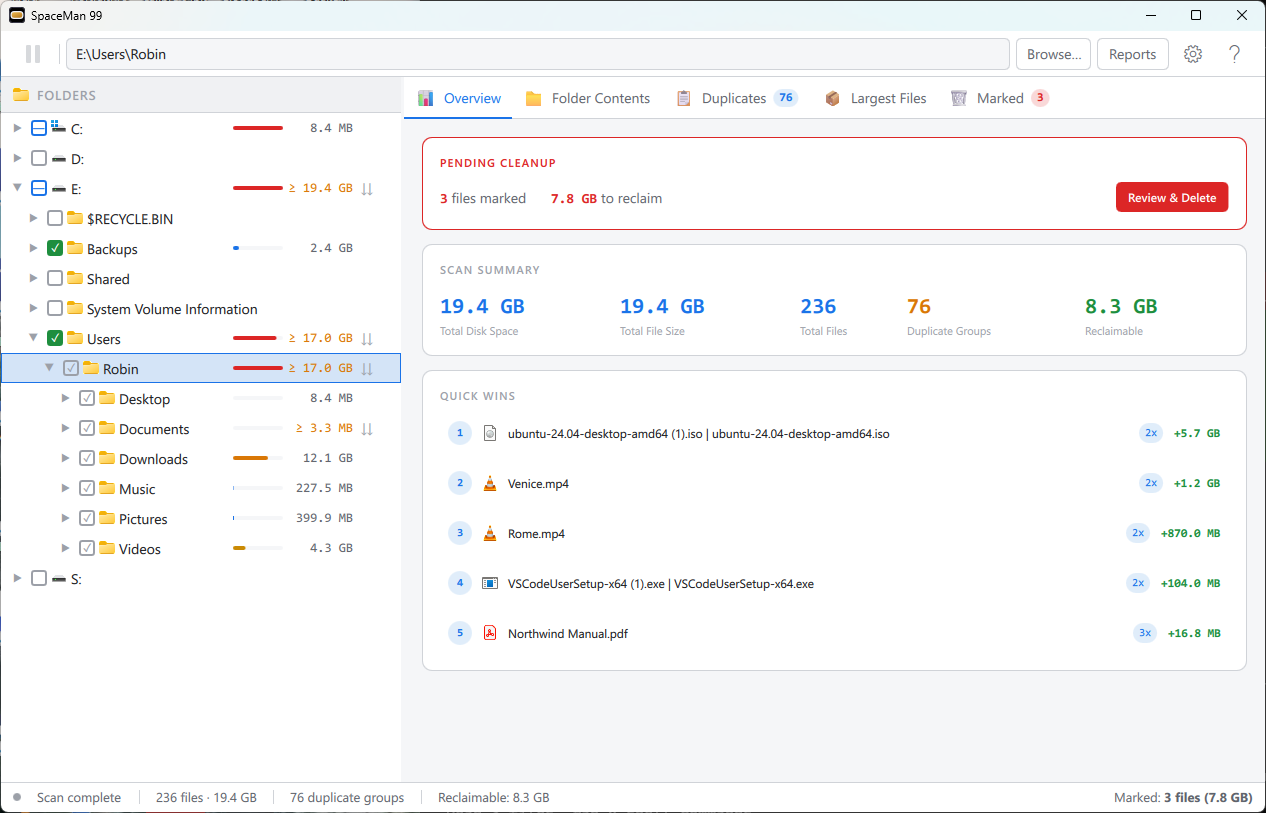
The main window has four parts, from top to bottom:
- the toolbar;
- the folder tree on the left, described in Folder Tree;
- the tabs on the right: Overview, Folder Contents, Duplicates, Largest Files and Marked, each with a page of its own in this guide;
- the status bar.
Drag the divider between the folder tree and the tabs to change their widths. The Duplicates tab shows a blue badge with the number of duplicate groups, and the Marked tab a red badge with the number of marked files. In a narrow window the tabs drop their icons first, and then shorten their labels.
SpaceMan 99 follows Windows' own choice of light or dark mode (in Windows' Personalization settings), so its window may look darker than the pictures in this guide, which are all of light mode.
The toolbar

From left to right:
Pause / Resume. Pauses a scan or a duplicate search, and resumes it. Its two bars are green, with a spinner turning around them, while SpaceMan 99 is working; amber and blinking while it is paused; and dimmed when there is nothing to pause. A delete cannot be paused (it has its own Cancel).
The path bar. Shows the folder selected in the folder tree. Click it to type or paste a path, and press Enter to go there, or Esc to leave it as it was. If part of the path does not exist, SpaceMan 99 goes to the deepest folder in it that does. Going to a folder selects it; it never ticks it for scanning.
Browse... Opens the Windows folder picker, and goes to the folder you choose.
Reports. Opens the Reports window. It is dimmed until a scan has finished, and hovering over it then says why.
Settings. The cog opens Settings. A blue dot on it means an update is available for the downloaded version of SpaceMan 99; clicking the cog then opens Settings on its About tab.
Help. Opens this guide. F1 does the same anywhere in SpaceMan 99.
The status bar

On the left, a dot and a line of text say what SpaceMan 99 is doing. The dot is green while it is working, amber while it is paused, and gray when it is idle. The text is one of:
- Ready: nothing has been scanned yet.
- Scanning... N folders, M files: a scan is running, and has read this much so far. While the counts are climbing fast they are shown rounded; they settle on the exact figures when they slow down.
- Scan paused — N folders, M files: the scan is paused.
- Finishing scan...: the scan has ended, and its figures are being worked out. This takes a second or two.
- Finding duplicates...: the duplicate search is starting.
- Finding duplicates — step 1 of 2: P%: the search is reading the start of each file that shares its size with another, which rules out most of them.
- Finding duplicates — step 2 of 2: P%: the search is reading in full the files still matching. This step starts while step 1 is finishing, so it can begin above 0%.
- Finding duplicates paused — step N of 2: P%: the duplicate search is paused (just Finding duplicates paused if it was paused before it started reading). Pausing in step 2 can take its percentage back a little, because a file that was partly read is read again from its start.
- Scan complete: the scan, and any duplicate search after it, have finished.
- Deleting...: marked files are being deleted.
A step of a duplicate search over a large or slow drive can take a long time, so the percentage gains decimal places, up to three, whenever a whole number would hardly ever change.
In the middle, once a scan has finished: the number of scanned files and the disk space they take, hidden while a scan is running. After a duplicate search, the number of duplicate groups and the space you could reclaim follow; these are hidden while a scan or search is running, and while the duplicate results are out of date.
On the right, whenever anything is marked: Marked: with the number of marked files and their total size.
Going to a folder
Besides clicking through the folder tree, there are four ways to go straight to a folder. None of them starts a scan: the folder is selected, and scanning it is up to you.
- The path bar, described above. It accepts network paths such as
\\server\share\folderas well. - Browse..., on the toolbar.
-
Open in SpaceMan 99 in File Explorer. Right-click a folder, or the empty space in a folder's window, and choose it:
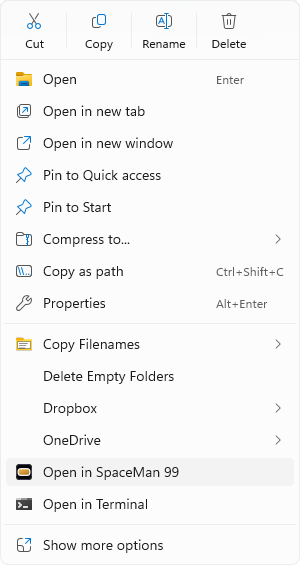
If SpaceMan 99 is already running, its window comes to the front and goes to that folder; otherwise SpaceMan 99 starts there. You can remove the command from the menu in Settings. - A command line or shortcut (the downloaded version only): run
SpaceMan.exewith the folder's path, for example"C:\Program Files\SpaceMan 99\SpaceMan.exe" "D:\Photos". As with the Explorer command, a SpaceMan 99 that is already running goes to the folder.
When SpaceMan 99 starts with no folder given, it opens on the folder that was selected when it was last closed; the first time, that is your own user folder.