Duplicates Tab
The Duplicates tab lists every duplicate group found in the scanned folders, whatever folder is selected in the folder tree, and is where you choose which copies to remove.
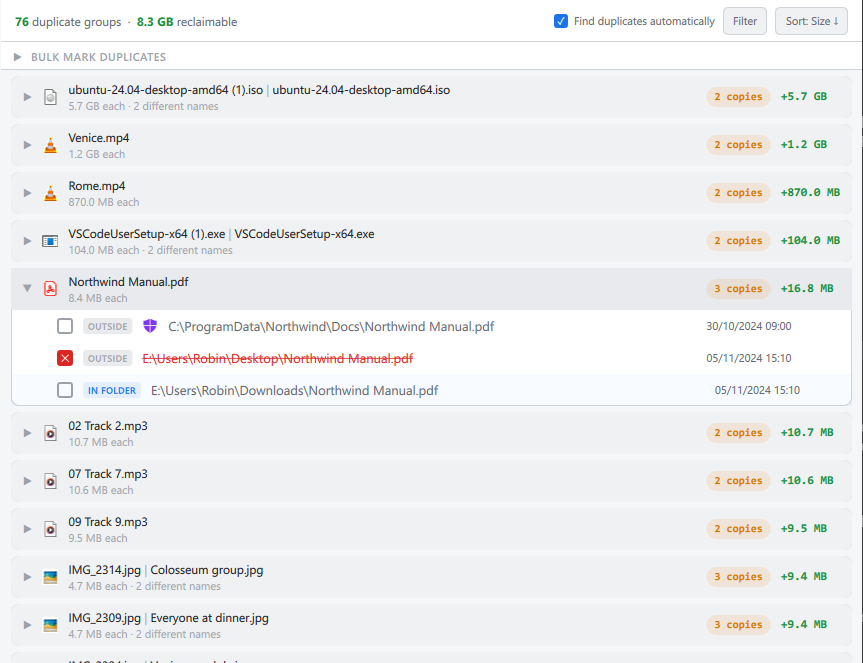
The header
On the left, a summary: the number of groups and the space you would reclaim by deleting all but one copy of each. Under it, when a search is waiting for you to start it (after a scan or a filter change with Find duplicates automatically unticked, or after you stop a search), an estimate of the work: how many files are candidates (they share a size with another file), how much may have to be read, and how much of that SpaceMan 99 already knows from earlier searches. The estimate stays in view while that search runs.
On the right:
- Find duplicates automatically. When ticked, as it is to begin with, a search starts by itself whenever a scan finishes. Untick it to search only when you ask. Ticking or unticking it never starts or stops a search.
- Find Duplicates starts a search, and turns into Stop while one is running. It is shown when there are no results yet, or when they are out of date, and is unavailable during a scan. Stopping keeps everything worked out so far, so the next search is quicker.
- Filter limits which files are compared (see Duplicate Groups). While a filter is set, the button has a colored border and names it, for example Filter: Pictures, Video.
- Sort orders the groups by Size (reclaimable), the space each would free, which is the order to begin with; by Name; or by Copy count.
Out-of-date and stopped results
A band above the list explains when the results are not the whole story: while a new search is running (the list shows the previous results until it finishes), after a search was stopped part way, or when the scan or the filter has changed since the search. The list stays usable in every case, and you can go on marking from it.
With no results to show, the tab says why: Check folders in the tree to start scanning, No duplicate search has been run yet., or, after a search that found nothing, No duplicates found.
Groups and copies

Click a group to expand or collapse it. Its heading shows the copies' names (different names are separated by a bar), the size of one copy, the number of copies, and in green the space deleting all but one would free.
Each copy is listed with its checkbox, its full path and its date. A cloud
 marks an online-only copy, and a purple shield
 a copy in a
protected folder. Tick a copy's checkbox to
mark it for deletion.
a copy in a
protected folder. Tick a copy's checkbox to
mark it for deletion.
When a group has copies both inside and outside the folder selected in the folder tree, each copy is tagged IN FOLDER or OUTSIDE. Selecting a folder in the tree before looking through the groups makes it easy to see, for example, which copies are in a backup folder.
Right-click menus
On a copy:
- Keep only this copy: marks every other copy in the group. Needs a Pro license.
- Mark this copy, Unmark this copy: as its checkbox.
- Go to folder: selects the copy's folder in the folder tree, with the copy highlighted on the Folder Contents tab.
- Open: opens the file (Open (downloads) for an online-only file).
- Show in Explorer, Copy path, Copy name and size: as on the Folder Contents tab.
On a group's heading:
- Mark all but newest: marks every copy except the most recently modified. Needs a Pro license.
- Mark all but oldest: marks every copy except the earliest modified. Needs a Pro license.
- Unmark group: unmarks every copy in the group.
- Expand, Collapse: opens or closes the group.
- Copy all paths: copies the path of every copy, a line each.
Bulk Mark Duplicates
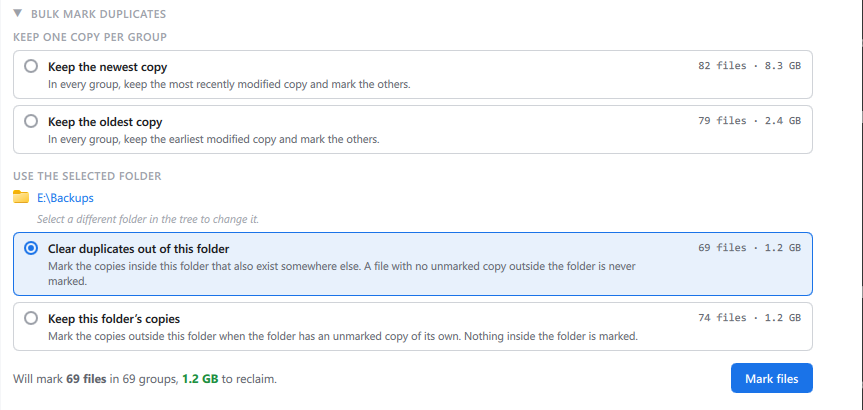
The Bulk Mark Duplicates panel, above the list, marks copies across every group at once by a rule. Click its heading to open it. It needs a Pro license to mark anything, but shows what each rule would mark without one.
Choose a rule:
- Keep the newest copy: in every group, every copy except the most recently modified.
- Keep the oldest copy: in every group, every copy except the earliest modified.
- Clear duplicates out of this folder: the copies inside the folder selected in the folder tree that also exist somewhere else. A file with no unmarked copy outside the folder is never marked.
- Keep this folder's copies: the copies outside the selected folder, in groups where the folder has an unmarked copy of its own. Nothing inside the folder is marked.
The two folder rules use the folder selected in the folder tree, named in the panel; select a different folder to change it. A drive, or a network computer, does not count: select a folder inside it, and one that has been scanned. The panel says so when the selected folder cannot be used.
Beside each rule, SpaceMan 99 shows how many files it would mark and how much space that is, and it keeps those counts up to date as you mark files or change the selected folder. Under the rules, a line sums up the chosen one, such as Will mark 69 files in 69 groups, 1.2 GB to reclaim, or says why it would mark nothing. Mark files marks them. Nothing is deleted: the files join the others on the Marked tab for you to review.
Without a Pro license
Marking copies one at a time, with their checkboxes, is free, and so is every kind of unmarking. The bulk commands mark nothing without a license, but still show you what they would have done:
- the Bulk Mark Duplicates panel shows its counts as usual, and Mark files explains what Pro adds;
- Keep only this copy, Mark all but newest and Mark all but oldest show a band above the list saying how many files, in how many groups, the command would have marked, with a Get Pro button.
See SpaceMan 99 Pro.