Settings
The cog at the right of the toolbar opens Settings. Changes take effect straight away; there is nothing to save. Close closes the window.
General
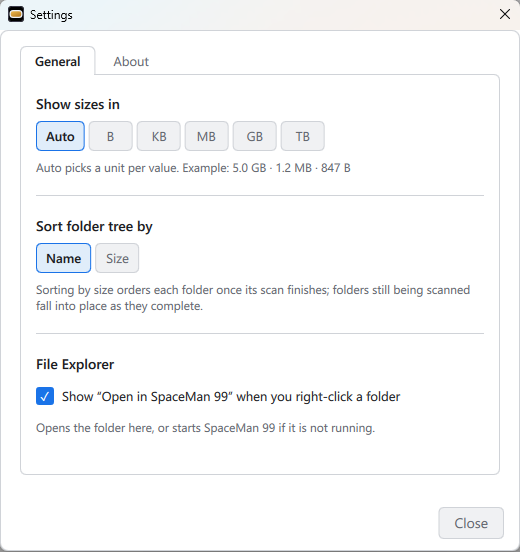
Show sizes in sets the unit sizes are shown in, everywhere in SpaceMan 99: Auto, B, KB, MB, GB or TB. Auto, the setting to begin with, picks a suitable unit for each size, and the setting shows examples of what it will do. A fixed unit makes sizes easy to compare down a column.
Sort folder tree by lists the folders in the folder tree by Name, or by Size, largest first. When sorting by size, each folder's contents are put in order once its scan finishes, so folders still being scanned move into place as they complete.
Under File Explorer, Show “Open in SpaceMan 99” when you right-click a folder adds the command to File Explorer's right-click menu (see Going to a folder). It is ticked to begin with. Unticking it removes the command at once; there is no need to restart File Explorer.
About
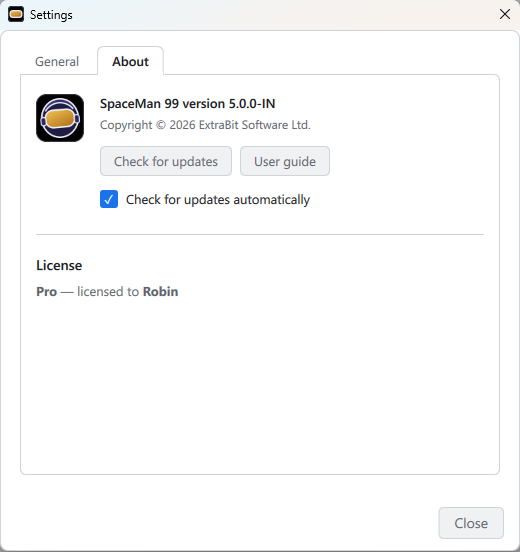
The About tab shows:
- The version of SpaceMan 99. It ends in -MS for the version from the Microsoft Store and -IN for the downloaded version, which is worth quoting if you contact support.
- Updates. The Microsoft Store version is kept up to date by the Store. The downloaded version checks for a new version once a day, and while one is available the About tab says so, and the Settings cog on the toolbar shows a blue dot. View update (or Check for updates, when none is known) opens the update page on the ExtraBit website. Untick Check for updates automatically to stop the daily check.
- User guide opens this guide. F1 anywhere in SpaceMan 99 does the same, as does the ? button on the toolbar.
- License. Whether SpaceMan 99 is using the free license, which is for non-commercial use, or a Pro license, and whom it is licensed to. With the free license, Buy Pro opens the Pro license dialog (see SpaceMan 99 Pro).