Choosing What to Scan
The folder tree on the left of the window does two separate jobs, and it helps to keep them apart:
- Clicking a folder's name selects it. Selecting is browsing: the Folder Contents tab shows what is in the selected folder, and some commands work on it. Selecting never starts a scan.
- Ticking a folder's checkbox includes it in the scan. SpaceMan 99 reads every file in the folder and in all the folders inside it, to measure their sizes and to look for duplicates. Only scanned folders have sizes, and only scanned files take part in the duplicate search.
Selecting a folder never ticks it, so you can browse anywhere without scanning. Clicking a checkbox does select its folder as well, so the Folder Contents tab shows the folder you have just ticked; to tick a folder without selecting it, use its right-click menu (below).
The checkbox
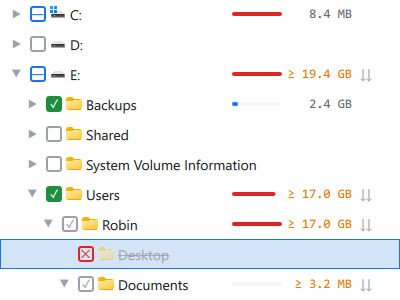
The checkbox beside each folder has five appearances. Clicking it moves it to the next state, as the last column shows.
| Checkbox | What it means | Clicking it |
|---|---|---|
 |
Not scanned. | Includes the folder. |
 |
You included this folder, and it is scanned with everything inside it. | Returns the folder to following the folder above it. |
 |
Scanned, because a folder above it is included. | Excludes the folder. |
 |
You excluded this folder from a scan that includes the folder above it. | Returns the folder to following the folder above it. |
 |
Not scanned itself, but a folder somewhere inside it is. | Includes the folder. |
So to scan a drive except for one folder, tick the drive, then click the
folder's gray tick
to turn it into a red cross
.
Right-clicking a folder shows the same choice in words: its first menu entry is Include in scan, Exclude from scan or Follow parent folder, whichever clicking the checkbox would do. With the keyboard, Space clicks the checkbox of the highlighted folder.
An excluded folder is shown dimmed and struck through. Its own files do not count toward any total, but if you have included a folder inside it, the excluded folder's row shows the size of what is included.
When scanning happens
Scanning starts as soon as you tick a folder, and unticking a folder takes it out of the scan straight away. When the whole scan has finished, SpaceMan 99 looks for duplicates among the scanned files (see Duplicate Groups).
SpaceMan 99 does not watch your disk for changes. If files change while it is running, right-click the folder and choose Rescan to read it again.
Each time you start SpaceMan 99, nothing is ticked. Tick the folders you want again. SpaceMan 99 does remember the fingerprints it worked out for your files, so finding duplicates again is much quicker for files that have not changed since.
What is never scanned
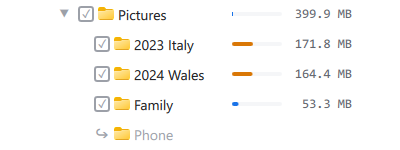
Folder links are never scanned. A folder link (a junction, a symbolic link,
or a drive mounted in a folder) is a second way into a folder that exists
somewhere else. It is shown with a link arrow
 in place of a checkbox. Following
it would count the same files twice, and every file behind it would appear to
be a duplicate of itself. The folder it points to is measured in its own place
in the tree, and the Folder Contents tab shows where the link leads, with a
button that takes you there.
in place of a checkbox. Following
it would count the same files twice, and every file behind it would appear to
be a duplicate of itself. The folder it points to is measured in its own place
in the tree, and the Folder Contents tab shows where the link leads, with a
button that takes you there.
A network folder that is also mapped as a drive letter is treated the same way, for the same reason: it is scanned under its drive letter only. Hovering over it names the drive to scan it under.
Network locations
Folders on other computers can be browsed freely: type a network path such as
\\server\share in the path bar at the top of the window and press Enter.
The computer appears in the folder tree, with its shares beneath it. It stays
in the tree next time you start SpaceMan 99, until you remove it with the
cross  that appears when you hover over it.
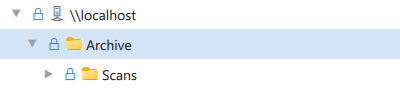
Network locations are never included in a scan unless you tick them, and
scanning one needs a Pro license. Without one, a padlock
 takes the place of the checkbox, and clicking it explains what Pro adds.