Marked Tab
The Marked tab lists every file marked for deletion, from every tab, so you can review the whole set before deleting any of it. See Marking Is Not Deleting.
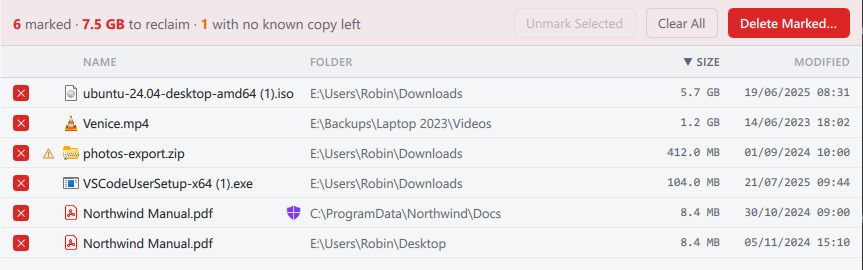
The action bar
The bar across the top is tinted red while anything is marked. It shows the number of marked files and the space deleting them would free. If any of them would leave no copy behind (below), it adds how many, in amber. With files selected, it adds their number and size. Its buttons:
- Unmark Selected: unmarks the selected files, which leave the list.
- Clear All: unmarks every file. It does not ask first, and cannot be undone.
- Delete Marked...: opens the confirmation dialog for deleting every marked file. Nothing is deleted until you confirm there. See Deleting Files.
The list
The list's columns, from left to right:
- A checkbox
 , always ticked. Untick it to unmark the file, which leaves the list.
 - An amber warning sign
 , if deleting the file would leave no copy of it (below).
 - Name: the file name, with a purple shield
 if the file is in a protected folder.
 - Folder: the folder the file is in. A long path is shortened from the left, so the end of it stays visible.
- Size: the file's size (not the space it takes on disk, which the Largest Files tab shows, so the two can differ for compressed or online-only files).
- Modified: when the file was last changed.
Click a column heading to sort by it. Selecting works as on the Folder Contents tab (see Folder Contents), except that Delete unmarks the selected files. It does not delete them.
Files with no known copy left
The amber warning sign is there to stop you deleting the only copy of a file by
accident. Hovering over it says which of three things is true:
- All the copies are marked. Every copy in the file's duplicate group is marked, so deleting them all would leave none. Unmark any one of them to keep it.
- No duplicate was found. The duplicate search found no other copy of this file, so deleting it destroys the only one.
- The file has not been checked for duplicates. It may be the only copy.
A warning does not stop the delete: you may well mean to delete a file you have no other copy of. It is there so that you do so knowingly.
The right-click menu
Unmark, Go to folder, Next duplicate, Previous duplicate, Show duplicate group, Open, Show in Explorer, Copy path and Copy name and size, each as on the Folder Contents tab.