How to Copy the Full File Paths of Multiple Files in Windows
Windows' built-in Copy as path wraps every path in quotes and offers only one format. Here's what it does well, where it falls short, and the alternative when you need more control.
Windows has a built-in way to copy a file's full path: right-click and choose Copy as path. It works for multiple files at once — select ten files, right-click, Copy as path, and all ten paths end up on the clipboard. For many tasks this is good enough.
For many others, it isn't.
What "Copy as path" gets right
- It handles multiple selections.
- It gives you genuine full paths, not just names.
- It's built into Windows and requires no installation.
- It works in Windows 10 and Windows 11.
If all you need is a handful of paths pasted into an email or a chat message, stop here — the built-in command does the job.
Where "Copy as path" falls short
Every path is wrapped in quotation marks. Windows adds them so the paths can be pasted directly into a command line that needs quoted arguments. Useful in that one context, a nuisance everywhere else. If you're pasting into Excel, a code editor, a config file, or a script that already handles its own quoting, you have to strip the quotes from every line by hand or with find-and-replace.
You can't get relative paths. Copy as path always gives you the full absolute path from the drive letter down. If your files are all inside the same project folder and you want paths relative to that folder, you're stuck doing string manipulation after the fact.
You can't combine paths with other information. There's no way to get path plus file size, path plus modified date, or path plus hash in a single operation. Each attribute needs a separate workflow.
It gives you one format and only one format. Quoted full paths, one per line. No option for unquoted, no option for relative, no option for path-plus-metadata, no option for anything except the exact output the designers picked. For people who copy paths often, that's a lot of post-processing across a lot of different tasks.
The alternative: CopyFilenames
CopyFilenames adds a configurable Copy Filenames option to File Explorer's right-click menu that handles full paths — among many other output formats — without the limitations above.
To copy full paths of multiple files:
- Select the files in File Explorer.
- Right-click the selection and pick Copy Paths from the menu.
- Paste wherever you need it.
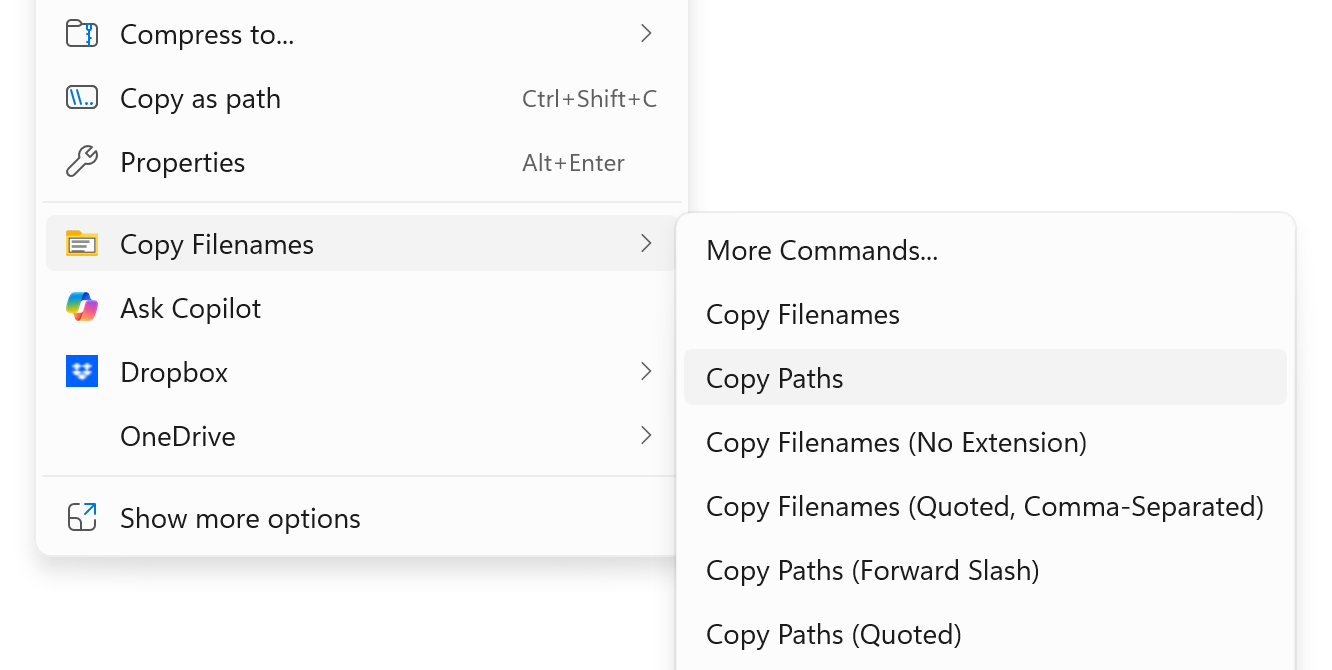
By default the output is plain full paths, one per line, no quotation marks, ready to paste into anything. You can configure additional commands for:
- Full paths with sizes and dates, tab-separated for Excel
- File names with paths stripped for list generation
- Paths with custom separators for scripts and config files
- Paths combined with file hashes for verification workflows
Each command sits on the right-click menu as a separate entry, so you pick the format you need at the moment you need it rather than post-processing the output of a one-size-fits-all command.
Frequently asked questions
Does CopyFilenames work alongside the built-in Copy as path?
Yes. It adds its own entries to the context menu without interfering with the built-in command. If you already have "Copy as path" muscle memory, you can keep using it for quick one-off copies and reach for CopyFilenames when you need something more.
Does it work in Windows 11's new context menu?
Yes. CopyFilenames supports both the Windows 11 modernized context menu and the classic "Show more options" menu.
Can I get paths without quotation marks?
Yes — that's the default. If you ever want quoted paths (for pasting into a command line), that's a separate output format you can configure.
Does it work over network drives and UNC paths?
Yes, for any location File Explorer can browse — mapped drives, UNC paths, OneDrive folders, and so on.