How to Copy a Filename Without the Extension in Windows
Windows has no built-in way to copy just the base name of a file without its extension for more than one file at a time. Here are the realistic options, and the one that's actually practical.
Windows has no built-in way to copy just the base name of a file without its extension. If you select a file, press F2 to rename, and copy the highlighted text, you get the name without the extension — but only for one file at a time, and only as a side effect of a rename operation you don't actually want to perform. For anything involving multiple files, the built-in options don't help at all.
Why you might need this
The usual reasons people hit this problem:
- Matching filenames against a list of IDs or keys in a database or spreadsheet, where the extension would break the match
- Generating a list of base names to use as variables, labels, or identifiers in code
- Renaming a batch of files by transforming the base name without touching the extension
- Building a playlist, index, or manifest where extensions are noise rather than information
In every case, what you want is clean base names, one per line, for as many files as you have selected.
The built-in options
The F2 trick (one file at a time)
Select a file, press F2, and Windows highlights only the base name — the extension is left out of the selection. Press Ctrl+C, then Escape to cancel the rename, and you have the base name on your clipboard.
This works, but only for a single file. There's no multi-file equivalent, and even for one file it's a three-keystroke workaround that hijacks rename mode just to get text onto the clipboard.
PowerShell
Get-ChildItem | ForEach-Object { $_.BaseName } | Set-Clipboard
This does the job correctly for multiple files, but it requires opening PowerShell in the right directory, knowing the BaseName property exists, and being comfortable with pipelines. It also has no way to restrict the output to a selection made in File Explorer — it operates on whatever's in the current directory.
The "Copy as path" workaround
Right-click → Copy as path, paste into a text editor, then manually strip the directory prefix and the extension from every line. Technically possible. Not something anyone would choose to do twice.
The practical solution: CopyFilenames
CopyFilenames adds a configurable Copy Filenames option to File Explorer's right-click menu. One of its standard output formats is "name without extension", applied to whatever files you have selected — one, ten, or several hundred.
- Select the files in File Explorer.
- Right-click the selection and pick Copy Filenames (No Extension) from the menu.
- Paste anywhere — Excel, a text editor, a code editor, a script.
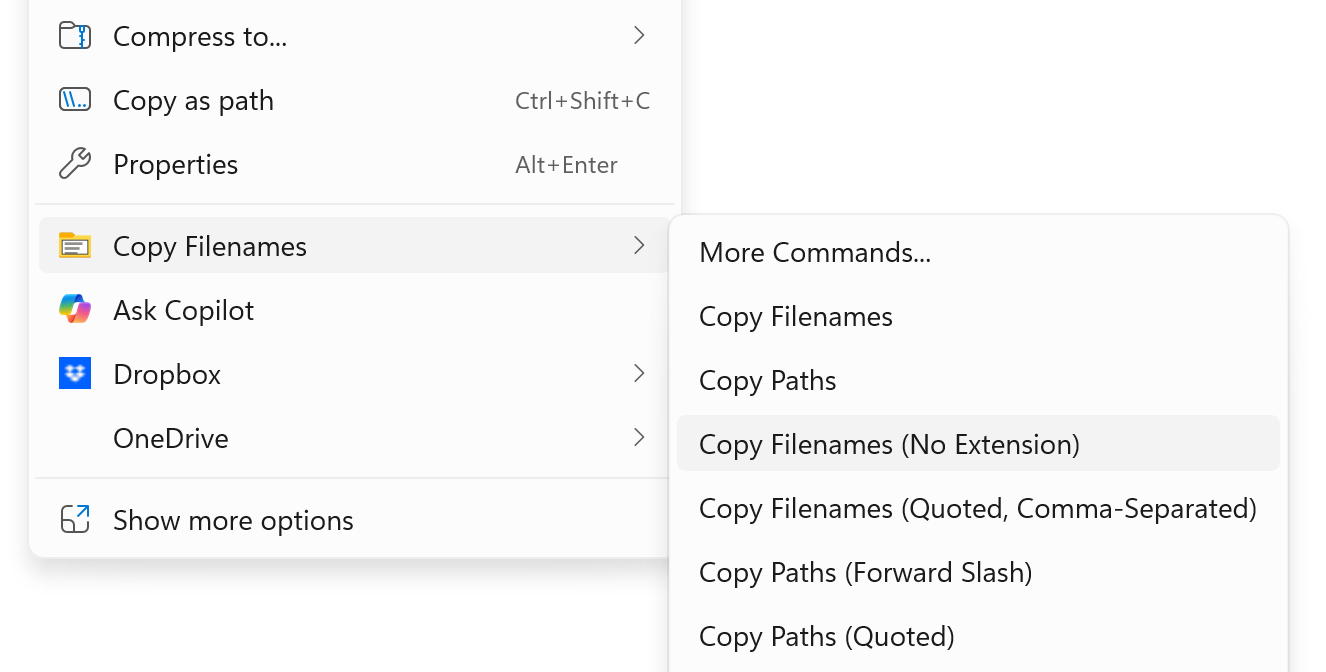
The output is clean base names, one per line, in the order the files were selected. No directory prefix, no extension, no quotation marks.
CopyFilenames lets you define multiple commands with different output formats, so you can have "copy names without extension" sitting alongside "copy full paths" and "copy names with sizes" on the same right-click menu. Configure it once; reach for whichever one fits the task.
Frequently asked questions
Does this work on files across multiple folders?
Yes. If you select them in File Explorer search results or any other view that spans multiple folders, the command applies to your selection regardless of where the files live.
What about files with multiple dots in the name, like archive.tar.gz?
CopyFilenames follows the standard Windows convention where the extension is whatever follows the final dot. archive.tar.gz becomes archive.tar. This is the same behavior you get from the F2 trick and from PowerShell's BaseName property.
Can I copy base names from within a ZIP file?
Not directly — the same limitation applies as for any shell extension, because File Explorer's handling of archive contents is different from its handling of real files. Extract first, then select.
Is there a way to include the extension as a separate column?
Yes. If you configure a command to output tab-separated fields, you can have base name and extension as two columns ready to paste straight into Excel.