How to Copy File Names from a Folder to Excel (Windows 10 & 11)
The realistic options for getting a list of filenames from a folder into Excel on Windows, what each one is good and bad at, and the fastest method.
Getting a list of files from a folder into Excel sounds like it should be a built-in feature of Windows. It isn't. Selecting files and pressing Ctrl+C copies the files themselves, not their names. There's no "Export to Excel" option anywhere in File Explorer. The answers you find online tend to involve PowerShell or command prompt redirection.
The built-in methods (and why they're frustrating)
Method 1: Right-click → "Copy as path"
Select your files, right-click, and choose Copy as path. Paste into Excel.
What you get
A column of full file paths, each wrapped in quotation marks.
Why it's annoying
- You get the full path, not just the file name. Stripping
C:\Users\you\Documents\Project\off every row in Excel is a job in itself. - Every entry is wrapped in quotes you'll need to remove.
- No file size, no modified date, no extension separation — just paths.
Fine for two or three files. Miserable for two hundred.
Method 2: Command Prompt with dir
Open the folder in File Explorer, type cmd in the address bar, then run:
dir /b > filelist.txt
Open filelist.txt and paste its contents into Excel.
Why it's annoying
/bgives you bare filenames only — no sizes or dates.- Without
/byou get a formatted listing with headers, totals, and column alignment that Excel can't parse cleanly. - You have to create, open, and then delete a temporary text file.
- Every variation (subfolders, sizes, dates, sorted order) means remembering different switches.
Method 3: PowerShell Get-ChildItem
Get-ChildItem | Select-Object Name, Length, LastWriteTime | Export-Csv files.csv -NoTypeInformation
Then open files.csv in Excel. This works — if you're comfortable enough with PowerShell to remember which properties to project, and don't mind round-tripping through a temporary file. Most people shouldn't have to put up with either, just to get a list of filenames into a spreadsheet.
The fastest method: CopyFilenames
CopyFilenames is a Windows shell extension that adds a Copy Filenames option to File Explorer's right-click menu. It's been actively developed since 2005 and works on Windows 10 and 11.
To copy a folder's contents into Excel:
- Select the files in File Explorer (Ctrl+A for everything).
- Right-click the selection and pick Copy Filenames from the menu.
- Switch to Excel and paste.
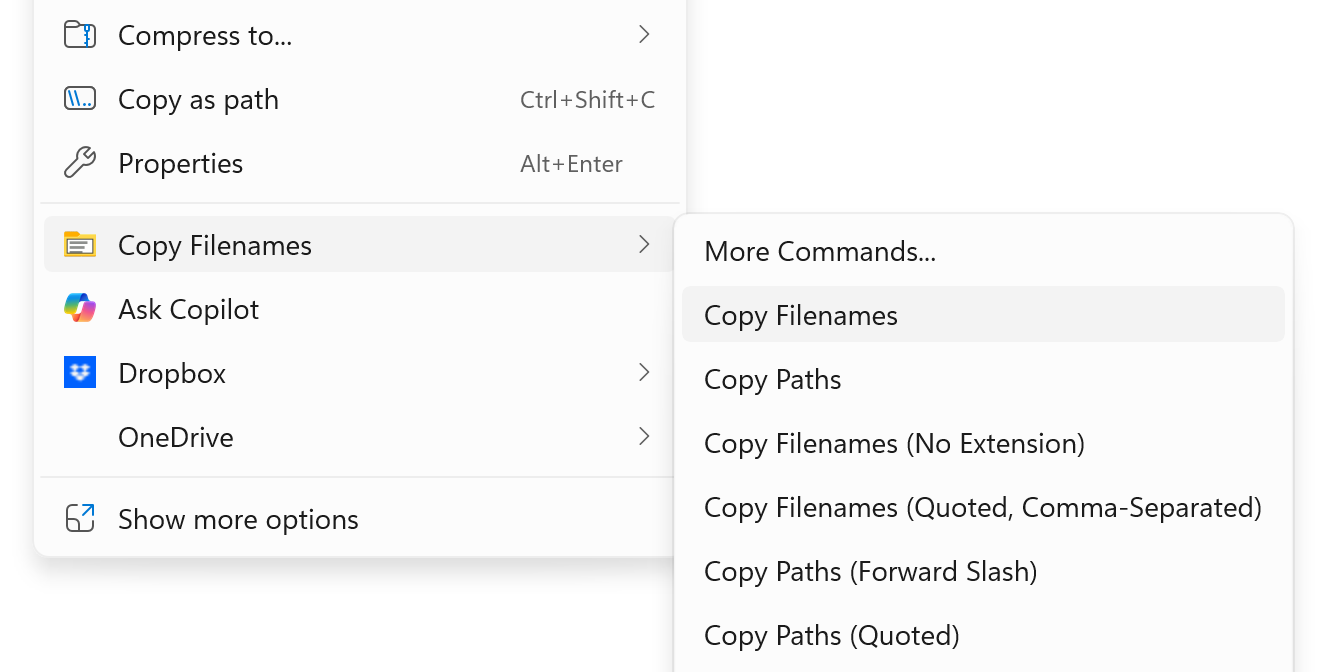
That's it. By default you get clean filenames, one per row, no quotes, no fuss.
Including sizes, dates, and paths
CopyFilenames lets you customize exactly what gets copied. You can configure it to include:
- File name with or without extension
- Full path or relative path
- File size (in bytes, KB, MB, or human-readable)
- Date created, modified, or accessed
- File attributes
- File hash (MD5, SHA-1, SHA-256, SHA-512, CRC32, or xxHash64)
Set it once, and the columns appear in Excel exactly the way you want them — tab-separated, ready to paste.
If you're not sure where to start, the built-in Command Gallery has a library of ready-made formats organized by category. Preview the output, pick one that matches what you need for your spreadsheet, and add it to your right-click menu in a single click.
Why CopyFilenames is the fastest way to get file names into Excel
The built-in methods all get you filenames eventually, but they all make you clean up afterward — strip a long path off every row, delete quotation marks, open and delete a temporary file, or learn enough PowerShell to remember which properties to project. CopyFilenames skips all of that. Right-click, paste, done.
Frequently asked questions
Is CopyFilenames free?
Yes — it's free to download and free for personal use, with no trial period, no countdown timer, no nag screens, and no upsell popups. The task in this guide works fully in the free version. A Pro license is required for commercial use.
What does a Pro license add?
Three things:
- Folder recursion — commands that walk into subfolders, so you can inventory an entire directory tree in one click instead of one folder at a time.
- CopyFilenamesCL, a command-line companion that runs any saved command from the terminal, PowerShell, or scheduled scripts — useful for automated audits, backups, and CI jobs.
- Removes the small "for commercial use only" notice from the right-click menu.
Does it work on Windows 11?
Yes, on both Windows 10 and Windows 11, including the new Windows 11 context menu.
Can I copy filenames from multiple folders at once?
Yes, in two ways. Run a Windows search to surface files from anywhere on your drive, select the results, and copy them in one operation. Or, with a Pro license, run a recursive command on a parent folder to capture every file in every subfolder underneath it.
Does it work with OneDrive and network drives?
Yes, anywhere File Explorer can show files.
Can I get just the filenames without the path or extension?
Yes, that's a standard option — useful when you want a clean list of base names for matching against a database or another spreadsheet.