Folder Contents Tab
The Folder Contents tab lists the folders and files in the folder selected in the folder tree, with their sizes and, for scanned files, what the duplicate search found.
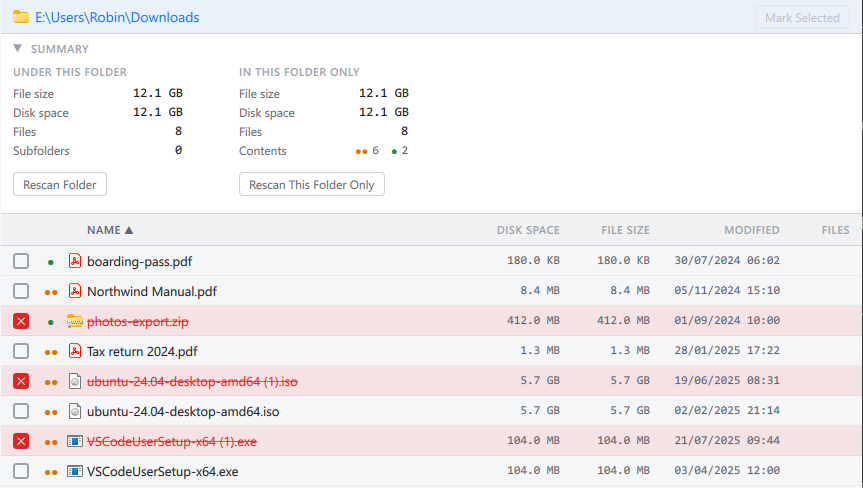
The top bar
The selected folder's path is shown on the left. On the right, Mark Selected marks the files selected in the list (folders are skipped), with their number in parentheses, such as Mark Selected (3). It reads Unmark Selected when everything selected is already marked, and is dimmed until something is selected. Ctrl+M does the same.
The summary
Below the path, a summary gives the folder's figures in two halves. Click its heading to hide or show it; SpaceMan 99 remembers which. When hidden, the heading still shows the main figures on one line.
Under this folder counts everything inside the folder, including the folders inside it: File size, Disk space, Files and Subfolders. Rescan Folder reads it all from disk again.
In this folder only counts just the files directly in the folder: File size, Disk space, Files, and Contents, which tallies those files by what the duplicate search found, using the same signs as the list below. Rescan This Folder Only reads just those files again, without the folders inside.
A figure is shown as a dash when it is not known. Notes under the figures explain anything unusual:
- figures that start with "≥" are a minimum, because a folder inside could not be read;
- a folder that is not ticked for scanning has no figures, and the note says to tick it in the folder tree;
- while a folder is being rescanned, its old figures are shown dimmed until the new ones arrive;
- if the folder holds online-only, compressed or sparse files, a note says why its disk space is less than its file size.
When a button is unavailable, hovering over it says why: for example, while a scan is running.
The list
The list's columns, from left to right:
- A checkbox
 , which marks the file for
deletion. Folders have none.
, which marks the file for
deletion. Folders have none. - A status sign: what the duplicate search found for the file (below).
- Name: the file or folder name. Marked files are red and struck through.
- Disk Space: the space the file, or everything scanned in the folder, takes on disk.
- File Size: the size of the file, or the total size of the files in the folder.
- Modified: when the file was last changed.
- Files: for a folder, the number of scanned files inside it.
Click a column heading to sort by it, and click it again to reverse the order.
A purple shield  at the end of a name
means the file is in a protected
folder: a Windows or program folder. You can mark it, but deleting it could
stop Windows or a program from working, and the delete asks you to confirm
that you mean it. See Deleting Files.
at the end of a name
means the file is in a protected
folder: a Windows or program folder. You can mark it, but deleting it could
stop Windows or a program from working, and the delete asks you to confirm
that you mean it. See Deleting Files.
Status signs
| Sign | Meaning |
|---|---|
 |
Duplicate: at least one other scanned file has identical contents. Click the dots to see its duplicate group. |
 |
Unique: no other scanned file has the same contents. |
 |
Empty file: it has no contents, so it takes no part in the search. |
 |
Online-only: the file is stored in the cloud, not on this disk, and the duplicate search has not compared it. |
 |
Online-only, unique: no other scanned file has the same contents. |
 |
Online-only, duplicate: SpaceMan 99 remembered the file's fingerprint from when it was on this disk, and another scanned file has the same contents. |
 |
Undetermined: an online-only file that shares its size with another file. Whether it is a duplicate cannot be known without downloading it, which SpaceMan 99 never does. |
 |
A link to a file elsewhere, not a file itself. |
 |
Unreadable: the file could not be read, so it could not be compared. |
| (none) | Not checked: the file is not scanned, the search has not reached it yet, or the duplicate filter leaves it out. |
On a folder's row, the sign is about the folder itself:
if it could not be read,
if it is a folder link, or
if it holds online-only files.
Selecting, opening and the keyboard
Click a row to select it, Shift+click to extend the selection, and Ctrl+click to add or remove one row. Clicking a checkbox marks the file without changing the selection. Double-click a folder to open it, or a duplicate file to see its group.
| Key | Does |
|---|---|
| Up, Down | Move up or down one row. |
| Page Up, Page Down | Move up or down a page. |
| Home, End | Move to the first or last row. |
| Shift with any of these | Extend the selection as you move. |
| Ctrl with any of these | Move without changing the selection. |
| Space | Select or deselect the current row. |
| Ctrl+A | Select everything. |
| Esc | Clear the selection. |
| Ctrl+M | Mark the selected files, or unmark them if they are all marked. |
| Menu key, or Shift+F10 | Open the right-click menu. |
The right-click menu
For files:
- Mark, Unmark: marks or unmarks the selected files.
- Next duplicate, Previous duplicate: selects the folder holding another copy of the file, with that copy highlighted, so you can step through a group's copies where they are.
- Show duplicate group: shows the file's group on the Duplicates tab.
- Open: opens the file in its usual program (one file at a time). For an online-only file this reads Open (downloads), because opening it downloads it.
- Show in Explorer: opens the file's folder in File Explorer, with the file selected.
- Copy path, Copy name and size (Copy paths, Copy names and sizes with several files selected): copies them, a line per file; the name and size are separated by a tab.
For folders, Open selects the folder in the folder tree, and Rescan reads it from disk again.
A folder that could not be read
If the folder could not be read, an amber band says so, with the reason Windows gave, in place of the list. Click the folder in the tree again to retry.
A folder link
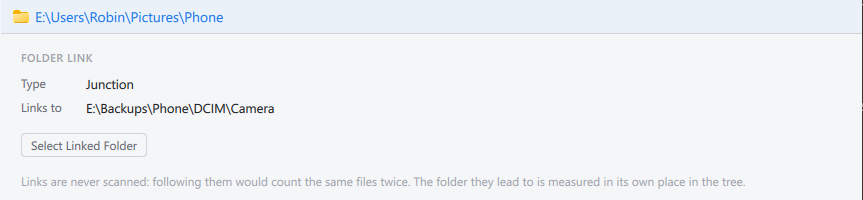
A folder link is never scanned (see Choosing What to Scan), so for a link the tab shows where it leads instead of a list: its Type (junction, symbolic link, volume mount point, or a network folder that is also mapped as a drive letter) and the path it Links to. Select Linked Folder selects that folder in the folder tree. It is unavailable, with the reason on hover, if the folder the link points to does not exist or cannot be reached.