Reports
Reports turn a scan into a document you can read, keep or share: a summary, folder sizes, file types, duplicates, or the largest files. They open in a window of their own, from Reports on the toolbar, which is available once a scan has finished.
Generating and reading reports is free. Saving, printing and copying them needs a Pro license.
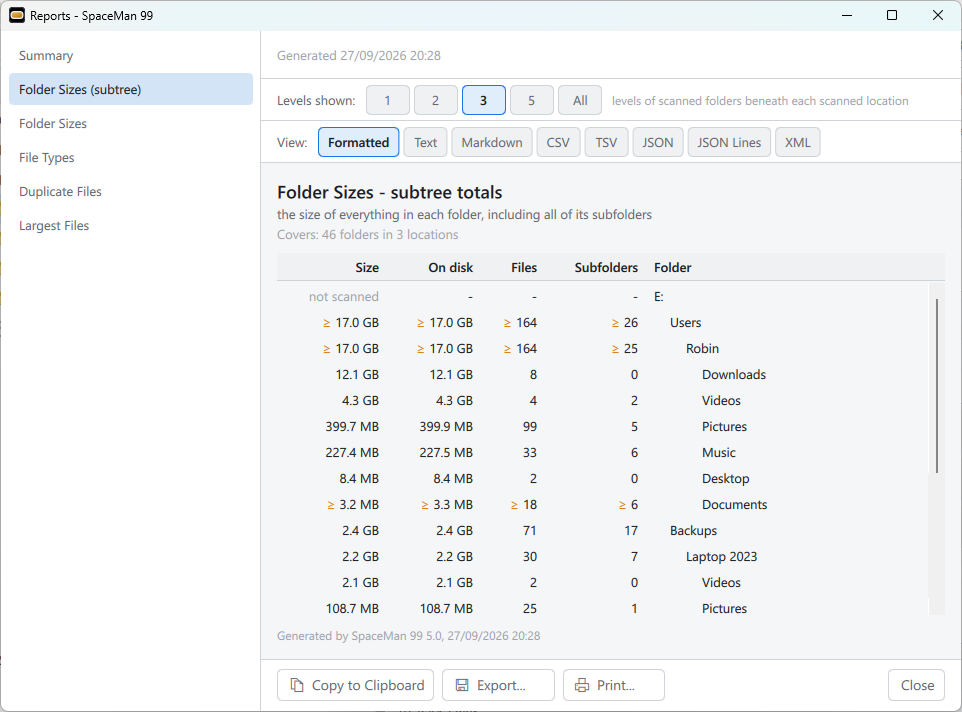
The Reports window
The Reports window is separate from the main window, with its own taskbar button, so you can keep it open beside it. It remembers its size and position, and while SpaceMan 99 stays open it reopens on the report you last looked at. Closing it cancels any report still being built.
The reports are listed on the left. Click one to build it: a spinner shows while it is built, and Cancel stops it. After a Cancel, Generate Report builds it after all. A built report says when it was built (Generated, with the date and time) and stays as it is until you ask for it again, even if you scan more folders: when the scan has changed since the report was built, an orange line says This report is out of date, and Refresh builds it again. (A progress bar, rather than the spinner, shows while a long report is laid out in one of the text views, or saved or printed.)
Every report says what it covers: the folders ticked for scanning when it was built. A report cannot be built while a scan is running, and while one is being built, changes to what is scanned, and any delete, wait until it has finished. A report with nothing in it, such as Duplicate Files before any duplicates are found, says Nothing to report.
The six reports
- Summary: the scan in figures: what was scanned, the numbers and sizes of files and folders, how much is in the cloud or compressed, the duplicates found, and what could not be scanned or read.
- Folder Sizes (subtree): every scanned folder, with the size of everything in it, including the folders inside it: size, disk space, number of files and number of subfolders.
- Folder Sizes: every scanned folder, with the size of just the files directly in it.
- File Types: the space taken by each type of file (each extension), grouped into Pictures, Video, Audio, Documents, Archives and Other.
- Duplicate Files: every duplicate group, with each copy's name, folder and date, and the space deleting all but one copy would free.
- Largest Files: the scanned files, largest first, by the space they take on disk.
Two reports have an option, shown above the report. Changing it builds the report again.
- Folder Sizes (subtree), Levels shown: how many levels of folders to list beneath each scanned location: 1, 2, 3, 5 or All. To begin with, 3.
- Largest Files, Show: 100, 1,000 or 10,000 files, or All. To begin with, 1,000.
Viewing a report
View chooses how the report is shown:
- Formatted: the Summary as a document, and the other reports as a table. Hover over a cell whose text is cut short to see all of it.
- Text, Markdown, CSV, TSV, JSON, JSON Lines or XML: exactly what saving the report in that format would write, character for character. Not every report offers every format: the Summary has no CSV, TSV or JSON Lines, and File Types no JSON Lines.
Every view shows the whole report, with or without a license.
Saving, printing and copying

The buttons at the bottom of the window:
- Copy to Clipboard: copies the whole report. From the Formatted view it copies both formatted text and plain text, so it pastes well into a document or an email; from any other view, just that format's text.
- Export...: saves the report to a file. The format offered first is the one you are viewing (a web page, for Formatted); the others are Plain Text, Markdown, CSV, TSV, JSON, JSON Lines and XML.
- Print...: prints the report.
- Close: closes the Reports window.
Only one of Copy, Export and Print can run at a time. Exported and printed reports always use a light, printable style, whichever theme Windows uses. If saving, printing or copying fails, a message says why, for example that the file could not be saved; canceling a Save or Print dialog shows nothing.
Without a Pro license, each of the three shows a PRO chip
 , and pressing it
explains what Pro adds instead. Selecting text in a report is free, but
Ctrl+C to copy it counts as copying the report. See
SpaceMan 99 Pro.
, and pressing it
explains what Pro adds instead. Selecting text in a report is free, but
Ctrl+C to copy it counts as copying the report. See
SpaceMan 99 Pro.