Deleting Files
SpaceMan 99 deletes files in one place only: Delete Marked... on the Marked tab, which deletes every marked file after you have confirmed it. This page describes the confirmation, the Recycle Bin choice, and what happens during and after the delete.
Confirming the delete
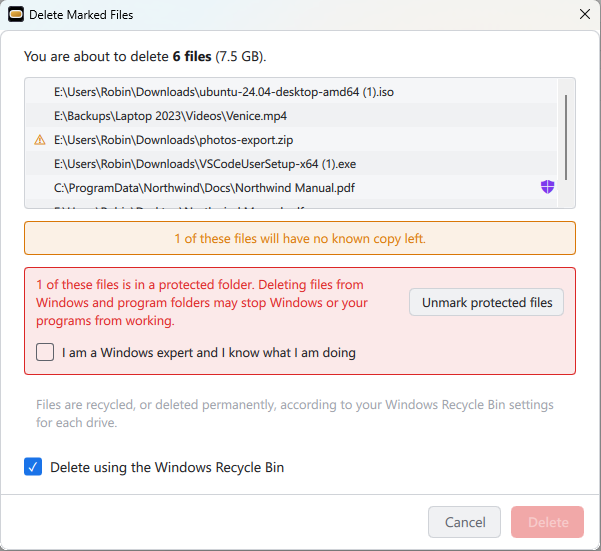
The Delete Marked Files dialog says how many files will be deleted and how
much space that is, and lists them. As on the Marked tab, an amber warning sign
 beside a file means it would leave no copy behind, and a purple shield
 means it is in a protected folder.
Bands under the list point out anything you should know before going ahead:
- An amber band says how many of the files will have no known copy left. It does not stop the delete.
- A red band about protected folders appears if any file is in a Windows or program folder (see Protected folders below). It stops the delete until you either press Unmark protected files, or tick I am a Windows expert and I know what I am doing. That box is unticked every time the dialog opens.
- A red band about network locations appears if any file is on another computer (including a network drive letter) while Delete using the Windows Recycle Bin is ticked. A network location has no Recycle Bin, so the delete cannot go ahead that way: untick the option to delete permanently, or unmark those files.
Delete is unavailable while a red band stands in the way. Cancel closes the dialog without deleting anything, and the files stay marked.
The Recycle Bin, or deleting permanently
Delete using the Windows Recycle Bin is ticked to begin with. If you untick it, it stays unticked the next time the dialog opens, until you close SpaceMan 99.
Ticked, SpaceMan 99 hands the delete to Windows, which does it exactly as File Explorer would. Windows moves the files to the Recycle Bin and shows its own progress window, with its own Cancel. If some files cannot be recycled, for example because they are too large for the Recycle Bin, or are on a drive that does not have one, Windows asks whether to delete them permanently; answer No and they are left where they are, stay marked, and are listed in the summary afterwards. If you have Windows' delete confirmation turned on, Windows also asks before recycling anything, as it does in File Explorer.
Recycled files can be restored from the Recycle Bin as usual. Windows treats the whole delete as one action, so straight afterwards Ctrl+Z in a File Explorer window puts back every file it recycled.
A drive with its Recycle Bin switched off
Windows lets you turn the Recycle Bin off for a drive ("Don't move files to the Recycle Bin" in the Recycle Bin's properties). Files on such a drive are deleted permanently, and Windows asks first only if you have also turned on its delete confirmation. SpaceMan 99 cannot see this setting in advance, which is why the dialog's note above the option reads Files are recycled, or deleted permanently, according to your Windows Recycle Bin settings for each drive. The summary afterwards says how many files were deleted permanently rather than recycled.
Unticked, the files are deleted permanently: they do not go to the Recycle Bin and cannot be recovered. The dialog says so in red while the option is unticked.
While the files are being deleted
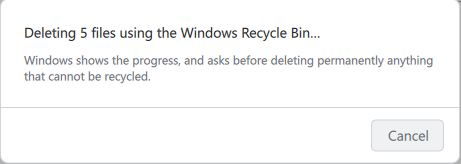
A panel covers the main window until the delete has finished, and SpaceMan 99 cannot be closed until then.
- For a Recycle Bin delete, the panel says how many files are being deleted, and Windows shows the progress in its own window.
- For a permanent delete, the panel shows a progress bar, the number of files deleted so far, and the folder it is working in.
Cancel on the panel (or Esc) stops the delete, as does Cancel in Windows' own window. Files already deleted stay deleted; the rest are left where they are, and stay marked, so you can try again. A file on a network location that has stopped responding can hold things up for a while; the panel shows which folder it is waiting on.
While a delete is running, the Reports window cannot build reports; the ones already built can still be viewed. The other way round, a delete started while a report is being built waits for the report to finish: the panel says Waiting to start…, and Cancel in the Reports window lets the delete go ahead sooner.
Afterwards
Deleted files leave the Marked tab, and every total, duplicate group and list in SpaceMan 99 is updated to match. If every file was deleted as asked (recycled, with the Recycle Bin option ticked), that is all that happens.
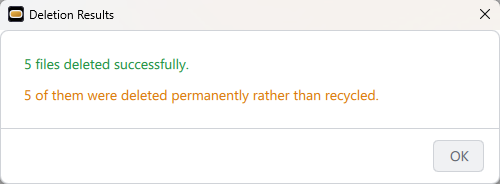
Otherwise the Deletion Results dialog sums up what happened:
- how many files were deleted;
- how many of those were deleted permanently rather than recycled, if any were;
- how many were left because you canceled, which are still marked;
- any files that could not be deleted, with the reason for each, such as a file being open in another program. These stay marked too.
Protected folders
Some folders hold files that Windows and your programs need. Deleting from them can stop Windows or a program from working, even when the file looks like a duplicate: a program may need its own copy in its own folder. SpaceMan 99 treats these folders as protected:
- the Windows folder;
- the Program Files folders;
- the ProgramData folder;
- the
Programsfolder in your user folder'sAppData\Local, where some programs install themselves; - SpaceMan 99's own data folder;
$Recycle.BinandSystem Volume Informationat the top of any drive.

Files in them are marked with a purple shield
,
on every tab. You can still
mark them: protection does not change what any command marks. It comes into
play at the delete, where the red band described above asks you either to
unmark those files or to confirm that you know what you are doing.
Protection covers these folders on the computer SpaceMan 99 is running on. The same folders reached over a network are not recognized as protected.