
Why RenameMan?
Fed up with renaming files one by one?
RenameMan lets you rename lots of files all at once. You can rename files using string replace, case conversion, auto-numbering, length truncation, auto-text and special number handling commands. RenameMan can also remember your most common commands, making them even quicker to use.
Key Features
Windows Explorer Integration
Rename files directly from the right-click context menu. Some renaming operations can be done with just one click!
Smart Text Detection
Automatically finds common text in filenames making changes very fast. Preview all changes before applying them.
Fail-Safe Operation
Preview mode shows all changes before they're made. Prevents problems like duplicate names. Includes undo for the last operation.
Stored Commands
Save your most common rename operations for instant reuse. Share commands with other users. Access recent commands quickly.
Advanced Numbering
Special support for filenames with embedded numbers. Auto-numbering facility for creating numbered sequences.
Metadata Support
Use file size, date, MP3 tags, and digital photo date/time in your rename patterns. Rename files from multiple subfolders at once.
Complete Feature List
How to Use RenameMan
Want to change the same text in lots of filenames?
The best way to do this is to use the RenameMan menu command that is available from the Windows File Explorer right-click context menu.
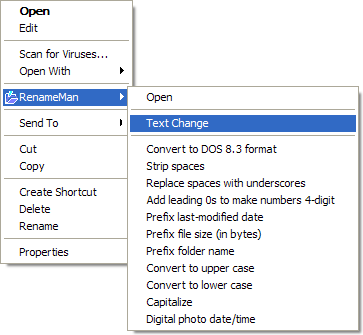
Simply select the files you want to rename in Windows File Explorer, and then right-click to open the Windows File Explorer context menu. This opens a menu like the one shown to the right.
Select RenameMan, then Text Change, and this brings up the dialog shown below, with any text common to all the selected filenames in edit boxes ready for changing!
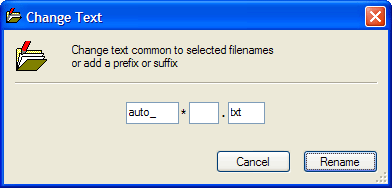
Make the changes needed and press Rename, and all the selected filenames will be renamed.
Do you regularly need to rename files the same way?
RenameMan lets you store any rename command that you can set up. These stored commands are also available directly from the Windows File Explorer right-click context menu. These are all the menu commands that appear in the RenameMan submenu below the Text Change menu command.
RenameMan comes with a number of pre-defined stored commands for useful rename operations, such as adding leading zeros to a number in the filenames to make the number 4 or 8 digits long.
You can also add your own stored commands that can be as simple or sophisticated as you need.
Benefits of Stored Commands:
- Extremely quick to use - just select files and choose from the context menu
- Can save time even when renaming just one file
- Just as easy to rename thousands of files with one click
- Helps ensure you rename files consistently
- Easy to share with other RenameMan users using Copy/Paste Command
Launching the RenameMan Application
You need to launch the RenameMan application if:
- • You need to rename files in ways beyond simple text changes or stored commands
- • You want to add, delete or organize the stored commands
- • You want to rename folders
- • You want to rename files from more than one folder at the same time
The easiest way to launch RenameMan is to select the files you want to rename in Windows File Explorer, and then use the Open command from the RenameMan submenu in the Windows File Explorer context menu.
Documentation
See the Quick Start Guide for a quick overview of the application.
RenameMan also has comprehensive context-sensitive help built in.