Configure
To bring up the Configure dialog, select the More Commands... menu command from the Windows File Explorer context menu
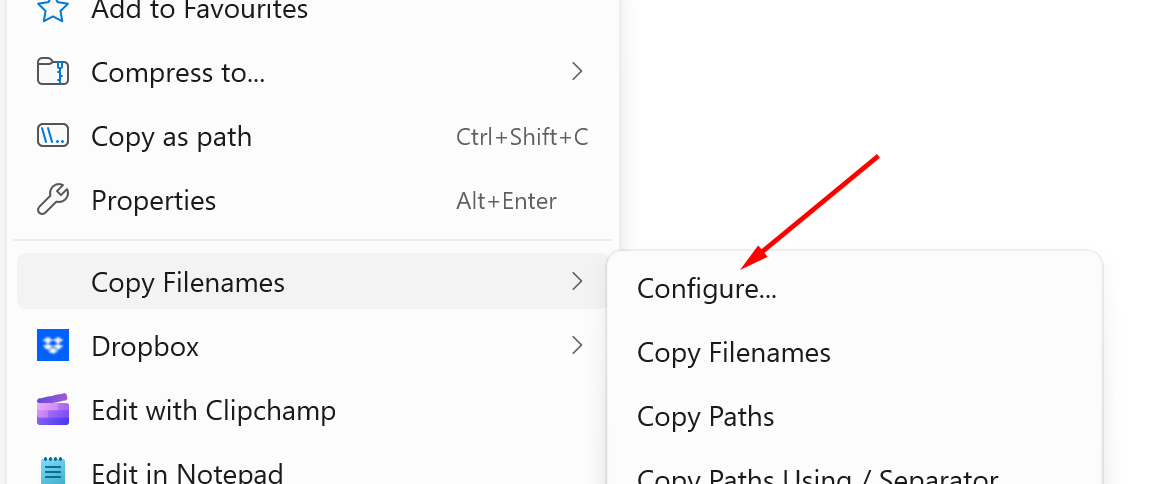
If the More Commands... command is not shown in the menu, then you can hold the CTRL key while selecting any other command and that will bring up the Configure dialog with that command selected.
When you select the More Commands... command, it brings up this dialog that lets you configure the commands shown in the Windows File Explorer context menu.
This dialog also lets you configure exactly what text you want copied to the clipboard for the current selection of files or folders.
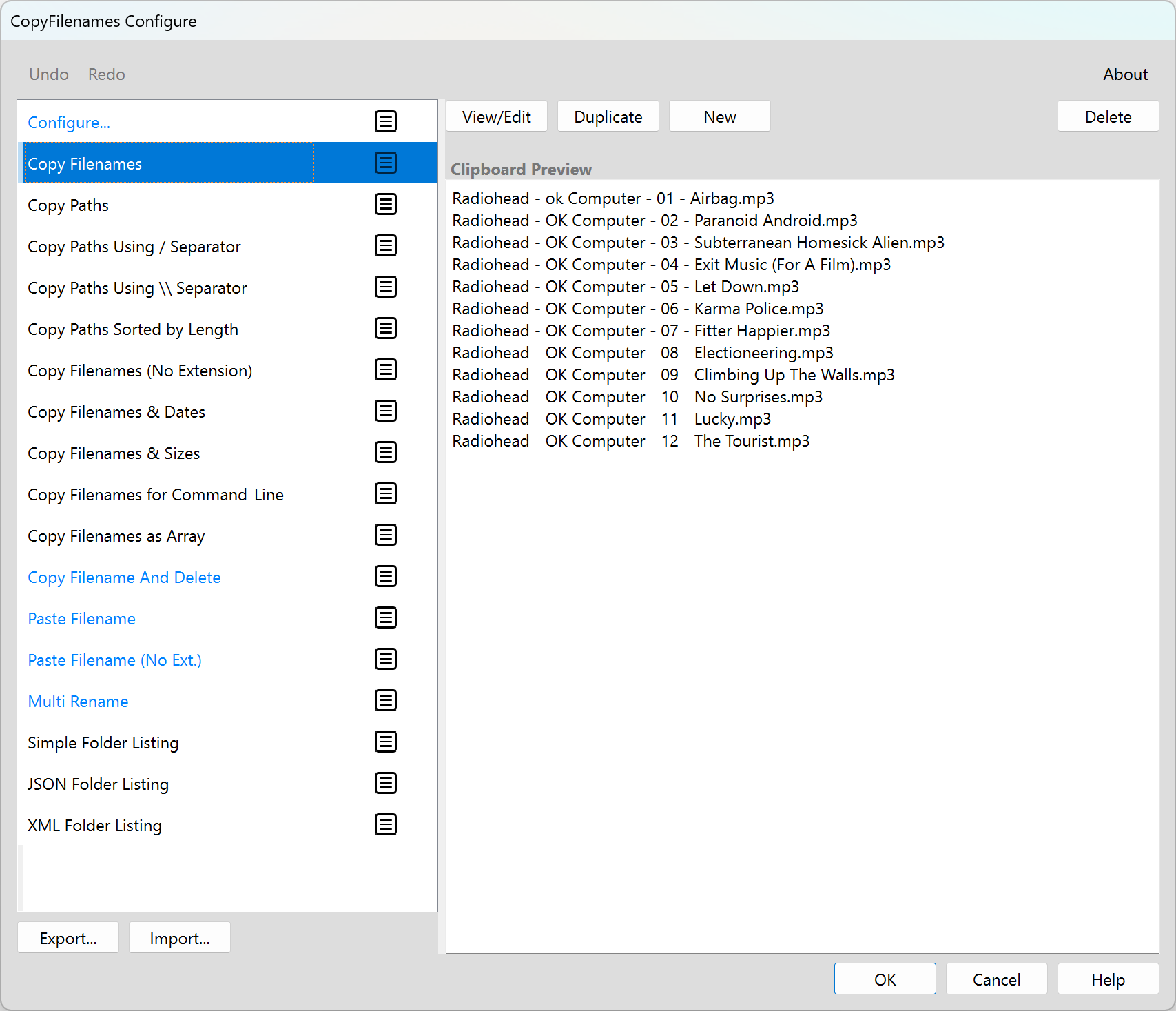
The default view shown above shows the command lists on the left, with tabs to switch between Context Menu commands and the Commands Library. On the right is the clipboard preview area showing the text that will be copied to the clipboard when you press OK. The clipboard preview uses a pale yellow background and monospace font for clarity.
In the commands list, the following text colors are used:
- Black - a copy attributes command that is enabled for the current selection
- Grey - a copy attributes command that is not enabled for the current selection
- Blue - a file action command
Below the command lists is a Browse Gallery... button to open the Commands Gallery, where you can discover and add pre-built commands.
The following topics describe the main things this dialog is used for:
Managing the stored commands and context menu