This is how the Options Panel appears if any folders are selected when the Options command.
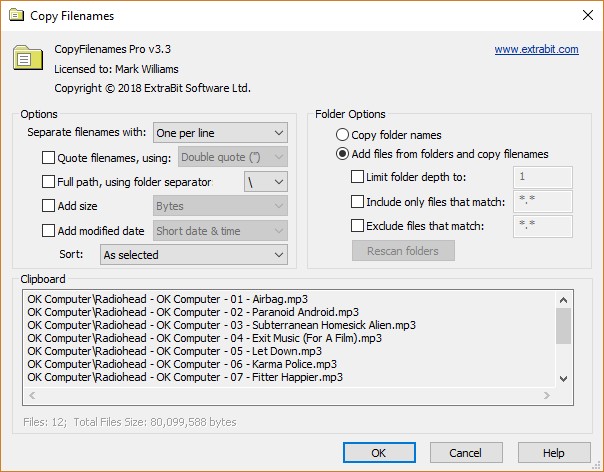
The only difference between this and the Options Panel is the extra controls in the Folder Options section.
The Folder Options let you select whether folders are simply treated like files and so appear as a single item, or whether to read the contents of the folders. If you choose to read the contents of the folders, then there are further options to let you limit the files that should be included.
Folder Options
Copy folder names |
Select this radio switch option if you want each folder selected to appear as a single item and be treated like a file. |
Add files from folders and copy filenames |
Select this radio switch option if you want to read the files from the selected folders. If you choose this option, you can then use the following options to restrict the files that are included: •Limit folder depth - by default, as well as including all files in the selected folders, all files from the entire sub-folder hierarchy under the selected folders are also included. This option lets you restrict how deep the hierarchy is searched. For example, if you limit the depth to 1, then only files in the selected folders will be included, and any sub-folders will be ignored. •Include only files that match - this lets you filter the files included so that only files that match the wild-card pattern (see below for how this works) are included. •Exclude files that match - this lets you filter the files included so that only files that don't match the wild-card pattern are included. If you use both the Include only files that match option and the Exclude files that match option, any files that are matched by both patterns will be excluded. Please Note: if you change any of these options, the Rescan folders button will become enabled, and you need to press it to update the text generated. This is because there may be a large number of files in the folder hierarchy under the selected folders which could take a long time to scan, which is why the text is not automatically updated when you change these options. Also note that these filters only apply to files added by searching the folders selected in Windows Explorer. Therefore if you have selected both files and folders in Windows Explorer, all the files selected in Windows Explorer will always be included. |
Wild-card Patterns
The wild-card patterns that can be used in the Include only files that match and Exclude files that match options let you specify a set of filenames by including the following characters to represent "wild-cards", i.e. any sub-string within the filename.
* |
This matches any sub-string, including an empty sub-string. Examples: *.txt - matches any file that has a ".txt" extension. Sunday* - matches any file than starts with "Sunday". |
? |
This match any one character. Examples: ???.* - matches any file that is exactly 3 characters long, and has any extension. Photo?.jpg - matches any file that starts with "Photo", is followed by any single character, and has the extension ".jpg", such as "Photo1.jpg", "Photo2.jpg", and so on. However, note that this example would not match "Photo.jpg", since ? does not match no character at all, nor would it match "Photo10.jpg" since ? does not match 2 characters. |
 ExtraBit Software Ltd. © 2022